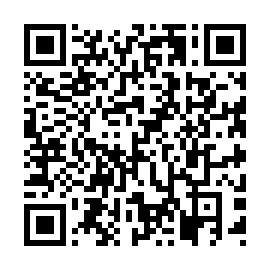
 ManyStops
Put ManyStops on your home screen
Get ManyStops from your phone's app store, or add it from your browser's menu.
Get the app

On Android, open manystops.com/app in Chrome and tap Install.
On an iPhone
- Tap Open the ManyStops app above, in Safari.
- Tap ••• at the bottom of the screen, then Share , then Add to Home Screen .
- Tap Add in the top corner. ManyStops is now on your home screen.
If your iPhone shows a Share button in the bar at the bottom, tap it and skip the •••. In Chrome on an iPhone, Share is at the top of the screen.
On an Android phone
- Tap Open the ManyStops app above, in Chrome.
- Tap Install when Chrome offers it, or open the menu (the three dots) and tap Add to Home screen.
- Tap Install. ManyStops is now on your home screen.
On a computer
- Click Open the ManyStops app above, in Chrome or Edge.
- Click the install icon at the right of the address bar.
- Click Install.
Safari on a Mac can add the app from the File menu, with Add to Dock.
What installing changes
- It opens from an icon, full screen, with no address bar.
- Your list is kept on the phone. In a store with no signal, every tap still works and syncs later.
- Nothing else changes. It is the same app, signed in to the same account.